How to Connect Steering Wheel to Steam?
If you love racing games on Steam, using a steering wheel can take your experience to a whole new level. But how do you connect your steering wheel to Steam so it works smoothly with your games?
You might feel stuck or unsure where to start, especially if you’re new to gaming peripherals. Don’t worry—this guide will walk you through every step clearly and simply. By the end, you’ll be ready to hit the virtual road with full control and precision.
Keep reading to unlock the full potential of your steering wheel on Steam!

Credit: www.youtube.com
Choosing The Right Steering Wheel
Choosing the right steering wheel for your Steam setup can make a huge difference in your gaming experience. It’s not just about picking the most expensive model; you want a wheel that fits your style, budget, and the games you love. Let’s break down how to find the perfect match for your needs.
Popular Brands And Models
Some brands have earned a solid reputation for quality and performance. Logitech offers reliable options like the G29 and G920, which are great for beginners and intermediate players. Thrustmaster’s T300 RS and TX Racing Wheel provide more advanced features and better force feedback for serious sim racers.
If you want a premium experience, Fanatec wheels stand out for their build quality and customization options. Have you tried any of these brands before? Your past experiences can guide you toward what feels right.
Features To Consider
Focus on what features matter most to you. Force feedback is key for feeling every turn and skid—look for wheels with strong, smooth feedback motors. Pedal quality matters too; some sets include a clutch and a brake pedal with adjustable resistance.
Consider the wheel’s rotation range, button layout, and whether it supports quick-release systems for easy swapping. Do you prefer a compact wheel for tight spaces or a larger one for more control? These details affect your comfort during long sessions.
Compatibility With Steam
Not every steering wheel works seamlessly with Steam games. Check the wheel’s compatibility with popular racing titles on Steam like “Assetto Corsa,” “Project CARS,” or “F1.” Most Logitech and Thrustmaster models are plug-and-play with Steam, but it’s smart to verify before buying.
Look for wheels supported by Steam Input, as this allows customization of controls directly within the Steam interface. Have you checked the Steam community forums? They often reveal which wheels perform best with certain games and any necessary setup tips.
Preparing Your Hardware
Ensure your steering wheel is fully assembled and powered before connecting to Steam. Check all cables for secure attachment and compatibility with your PC. A stable connection helps avoid interruptions during gameplay.
Preparing your hardware is an exciting step in connecting your steering wheel to Steam. It’s where the virtual experience begins to take shape in the real world. By carefully setting up your hardware, you’ll ensure a seamless gaming experience. Let’s dive into the essential steps to get your steering wheel ready for action.
Unboxing And Assembly
Unboxing your new steering wheel is like opening a treasure chest. Start by laying out all components: the wheel, pedals, power adapter, and any additional accessories. Take a moment to read the instruction manual, which often provides specific guidance for assembly. Begin assembling the wheel and pedals. Follow the manufacturer’s instructions to ensure everything is secure and properly aligned. Remember, a stable setup enhances your driving precision.
Connecting Pedals And Accessories
The pedals are crucial for a realistic driving experience. Connect them to the wheelbase using the provided cables. Ensure the connections are tight and secure. If your setup includes additional accessories like gear shifters or handbrakes, now is the time to connect them. Each accessory adds a layer of realism, making your virtual driving experience even more immersive.
Power And Usb Setup
Powering your steering wheel is the next vital step. Connect the power adapter to the wheelbase, and plug it into a power outlet. This ensures your wheel has the necessary energy to perform at its best. Next, connect the steering wheel to your computer using a USB cable. Ensure your computer recognizes the device, as this is crucial for Steam integration. A quick test drive can confirm everything is in working order. Your hardware is now ready to bring your gaming adventures to life. Are you eager to hit the virtual roads?
Installing Drivers And Software
Installing the correct drivers and software is essential to connect your steering wheel to Steam. This process helps Steam recognize the wheel and ensures smooth gameplay. Without proper installation, the wheel may not work or respond correctly in games.
Start by downloading the official software from the wheel’s manufacturer. This software often includes drivers and tools needed for setup. After installation, check for any firmware updates to keep the wheel running smoothly. Finally, calibrate the wheel to match your preferences and ensure accuracy during play.
Downloading Manufacturer Software
Visit the official website of your steering wheel’s brand. Find the support or downloads section. Look for the exact model of your wheel. Download the latest driver and software package available. Save the files to an easy-to-find location on your computer.
Use the downloaded installer to begin the installation. Follow the on-screen instructions carefully. Restart your computer after installation to apply changes. This step helps Steam and Windows detect the wheel properly.
Installing Firmware Updates
Firmware updates improve the wheel’s performance and fix bugs. Open the manufacturer’s software after installation. Look for the firmware update option or tool. Connect your steering wheel to your computer with a USB cable.
Run the firmware update process. Do not disconnect the wheel during this step. Wait until the update completes fully. This update ensures compatibility with new games and Steam features.
Calibrating The Wheel
Calibration makes sure the wheel moves and reacts correctly. Open the calibration tool within the manufacturer’s software or Steam settings. Follow the instructions to turn the wheel fully left and right. Press pedals and buttons as prompted.
Save the calibration settings once done. Test the wheel in a Steam game to confirm proper function. Adjust settings again if the wheel feels off or unresponsive.

Credit: www.reddit.com
Configuring Steam For Your Wheel
Configuring Steam for your steering wheel is an essential step to ensure smooth gameplay and precise control. Steam offers built-in options that help your wheel communicate correctly with your games. Taking the time to adjust these settings can make the difference between a frustrating experience and one that feels natural and responsive.
Accessing Steam Big Picture Mode
Big Picture Mode is designed to optimize Steam for controller use, making it perfect for setting up your steering wheel. To enter Big Picture Mode, click the controller icon at the top right of the Steam window or press the guide button on a connected controller.
This mode simplifies navigation and exposes detailed controller configuration options. Have you noticed how much easier it is to tweak settings when you’re in Big Picture Mode compared to the regular Steam interface?
Enabling Controller Support
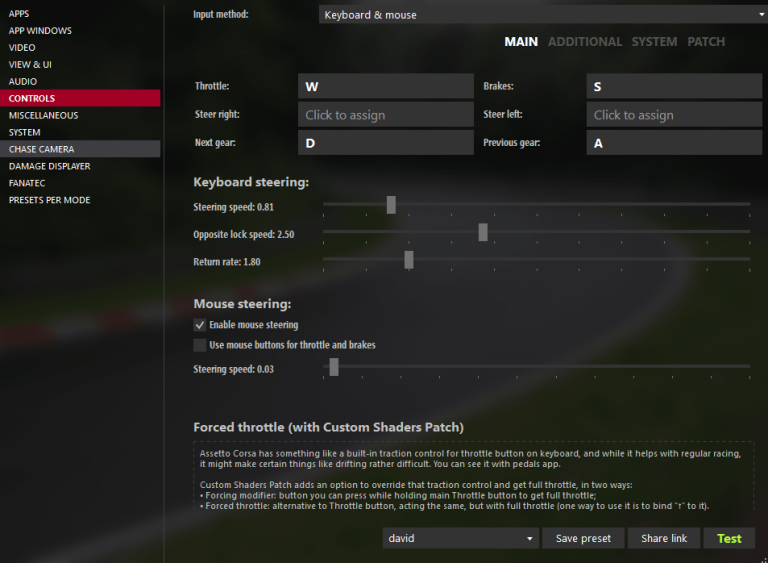
Once inside Big Picture Mode, head to Settings > Controller Settings. Here, you can enable support for various controller types, including generic gamepads and Xbox controllers.
Make sure to check the box that corresponds to your steering wheel or a generic controller if your wheel isn’t listed by name. This step lets Steam recognize your wheel as a valid input device, which is crucial for proper functionality.
Customizing Button Mapping
Every steering wheel has unique buttons, pedals, and sometimes even extra dials. Steam allows you to customize button mapping so that each input does exactly what you want it to.
In the Controller Configuration screen, you can remap buttons, assign multiple functions, or even set up custom dead zones for pedals. Have you tried adjusting your brake pedal sensitivity? It can dramatically improve your racing precision.
Remember to save your configuration and test it in-game to make sure the settings feel right. Sometimes small tweaks here can lead to big improvements in your driving experience.
Optimizing In-game Settings
Optimizing your in-game settings is essential to get the most from your steering wheel on Steam. It helps create a smoother, more responsive driving experience that feels natural. Fine-tuning these settings can make the difference between a frustrating session and hours of immersive gameplay.
Adjusting Sensitivity And Deadzones
Sensitivity controls how much your steering wheel movement translates into in-game action. Too high, and small wrist twitches make your car swerve wildly; too low, and it feels sluggish and unresponsive.
Deadzones are small areas around the wheel’s center where input is ignored. Setting a deadzone prevents unintentional movements when your wheel isn’t perfectly centered.
Try starting with a low deadzone and moderate sensitivity. Then, gradually tweak each setting while testing in-game to find what feels right for you. Have you noticed any drift or unintentional steering? Adjusting deadzones usually helps fix that.
Force Feedback Configuration
Force feedback adds physical resistance and vibrations to your wheel, simulating road texture and car dynamics. It brings a layer of realism that you can’t get from a controller.
Too much force feedback can tire your hands quickly or feel jittery, while too little removes the immersion. Experiment with strength settings and effects like road bumps, tire slip, and collisions.
Many games let you customize force feedback separately from Steam’s global settings. Test different profiles and adjust the intensity until you feel connected to every corner and bump on the track.
Setting Up Profiles For Different Games
Different racing titles often require unique steering and force feedback setups. Creating separate profiles for each game saves time and ensures your settings are always optimized.
Use Steam’s controller configuration tool or your wheel’s software to save these profiles. Include adjustments for sensitivity, deadzones, button mapping, and force feedback strength.
Switching profiles means you don’t have to guess or manually adjust before every race. Which games do you play most, and how different are their steering demands? Tailoring your profiles to those specifics makes your setup ready to go instantly.
Troubleshooting Common Issues
Connecting a steering wheel to Steam can enhance your gaming experience, but issues may arise. Troubleshooting these problems helps keep your setup running smoothly. This guide covers common issues and how to fix them quickly.
Wheel Not Recognized By Steam
Steam might not detect your steering wheel if the drivers are missing or outdated. Check if your wheel is properly connected to your PC. Try unplugging and plugging it back in. Restart Steam to refresh hardware detection. Make sure you have installed the latest drivers from the manufacturer’s website. Verify the USB port works by testing another device. Sometimes, switching to a different USB port solves the problem.
Input Lag And Calibration Problems
Input lag makes the wheel feel slow or unresponsive. Calibration issues cause the wheel to turn incorrectly or drift. Open Steam’s Big Picture mode and navigate to controller settings. Recalibrate your wheel using the calibration tool. Adjust sensitivity and dead zones to match your preferences. Close background programs that may affect performance. Lower graphics settings in games can also reduce lag.
Fixing Force Feedback Errors
Force feedback errors cause the wheel to vibrate too much or not at all. Check force feedback settings inside the game and Steam. Ensure force feedback is enabled both in Steam and game menus. Update your wheel’s firmware to fix known bugs. If force feedback is too strong, reduce the intensity in the settings. Test the wheel on another game to see if the problem persists. This helps identify if the issue is with the wheel or the game itself.
Tips For A Better Racing Experience
Improving your racing setup boosts both fun and control. Small changes make a big difference in gameplay quality. Focus on comfort, precision, and immersion for the best results.
Using Additional Accessories
Adding pedals with force feedback creates a more realistic feel. A gear shifter helps simulate manual transmission for more control. Seat supports improve stability during intense racing sessions. Consider a wheel stand for better positioning and comfort.
Maintaining Your Steering Wheel
Regular cleaning prevents dust buildup and keeps sensors working well. Check cables and connectors for damage or loose parts. Calibrate the wheel often to maintain accuracy. Store the wheel in a dry place to avoid wear and tear.
Enhancing Immersion With Vr
Virtual reality places you inside the racing cockpit. It offers a 360-degree view and a lifelike experience. Use VR headsets compatible with Steam for smooth gameplay. Combine VR with a quality steering wheel for full immersion.
Credit: www.reddit.com
Frequently Asked Questions
How Do I Connect A Steering Wheel To Steam?
To connect your steering wheel to Steam, plug it into your PC. Open Steam, go to Settings > Controller, and enable “Generic Gamepad Configuration Support. ” Launch your racing game, and the wheel should be recognized automatically.
Which Steering Wheels Are Compatible With Steam Games?
Most popular wheels like Logitech, Thrustmaster, and Fanatec work with Steam. Ensure your wheel has PC support and updated drivers for smooth Steam integration and gameplay.
How To Calibrate My Steering Wheel On Steam?
Go to Steam’s Big Picture Mode, select Settings > Controller Settings. Choose your wheel, then click “Calibrate. ” Follow the on-screen instructions to ensure accurate wheel input for games.
Can I Use A Wireless Steering Wheel With Steam?
Yes, wireless steering wheels are compatible if properly connected to your PC. Make sure the wheel’s receiver is paired, drivers installed, and Steam detects the device under Controller Settings.
Conclusion
Connecting your steering wheel to Steam is easier than you think. Follow the steps carefully for smooth setup. Ensure your device is compatible and updated. Test the connection before starting your game. Enjoy better control and a more fun experience.
Keep your drivers and software current for best results. Simple adjustments can improve your gameplay a lot. Now, you can drive with confidence on Steam. Give it a try and feel the difference.

Automotive Specialist & Expert Writer
Tyler Kingston is a passionate automotive writer with a wealth of knowledge in all things cars. With years of experience in the automotive industry, Tyler specializes in everything from vehicle maintenance to the latest car technologies and innovations. He is known for his ability to break down complex automotive concepts into easily digestible, engaging content for both novice and experienced car enthusiasts. Whether it’s detailing car repair techniques, reviewing new car models, or diving into the world of auto accessories, Tyler’s articles provide valuable insights to readers. His hands-on experience, combined with a genuine love for cars, allows him to deliver expert advice, tips, and news that keeps readers coming back for more.